
Explore
Frequently Asked Questions
At the top menu of COGWM.org
- Click on the cart icon.
- Click on login to account.
- Register with your email address and follow instructions
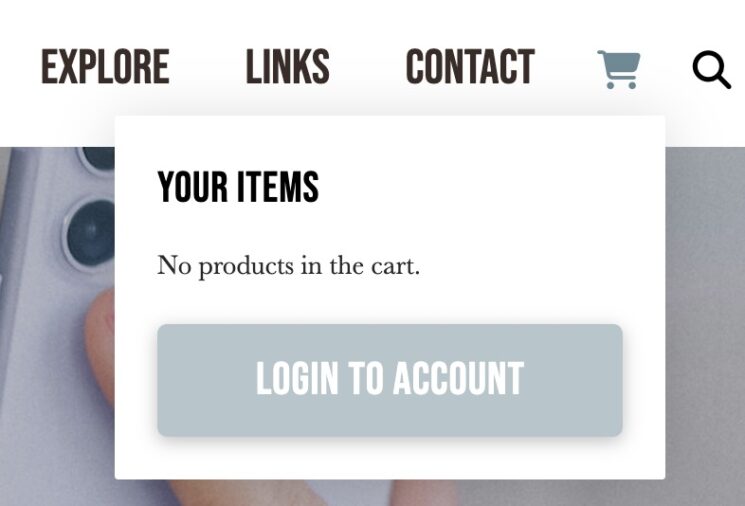
1. Click on the Shopping cart icon in the menu at the top. Then click the Login to Account button.
2. At the bottom, look for the "Lost your password?" link and click it.
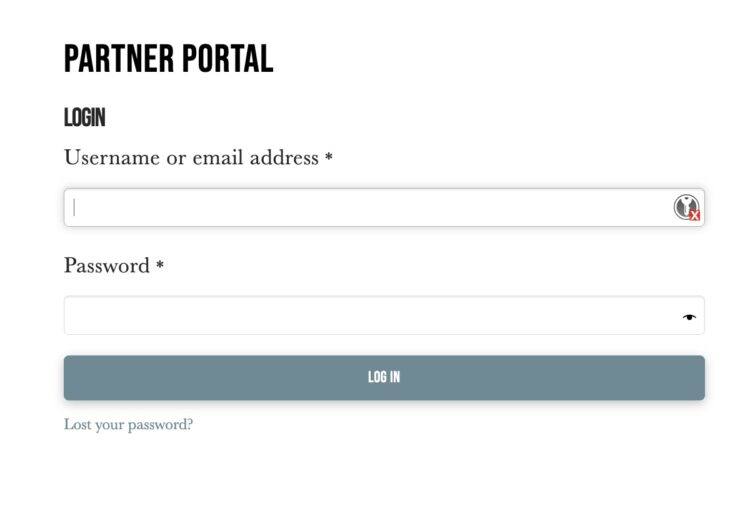
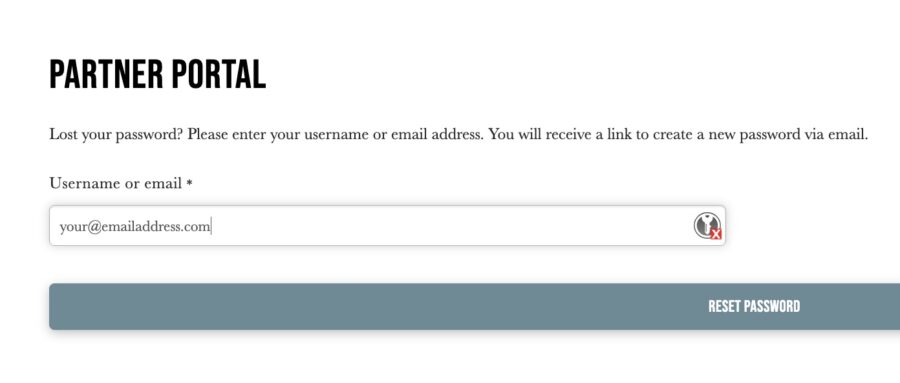
3. Enter your email address and click the Reset Password button.
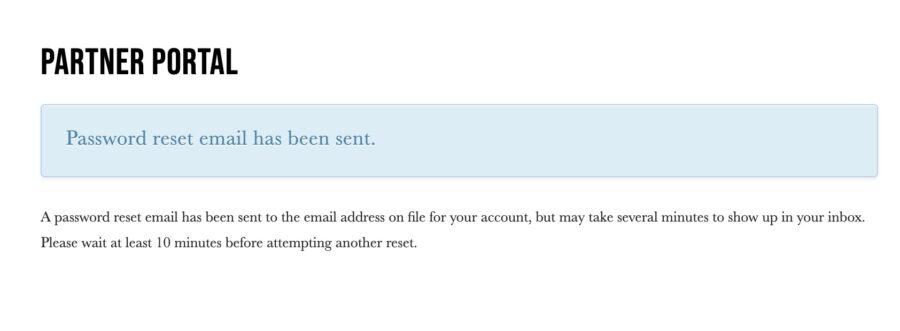
4. You should see a confirmation screen.
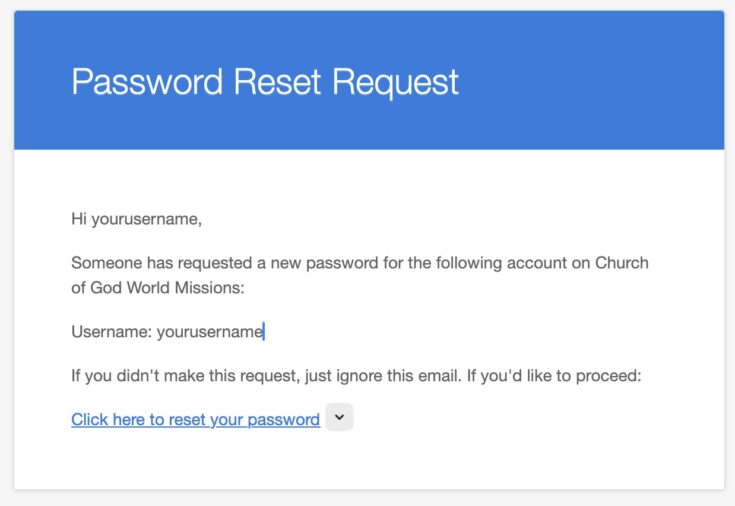
5. An email will appear in your Inbox which looks like this. Click the line which says "Click here to reset your password." [If the email does not show up within 5-10 minutes, please check your Spam and Junk folders as your email provider may have inappropriately marked it as spam/junk.]
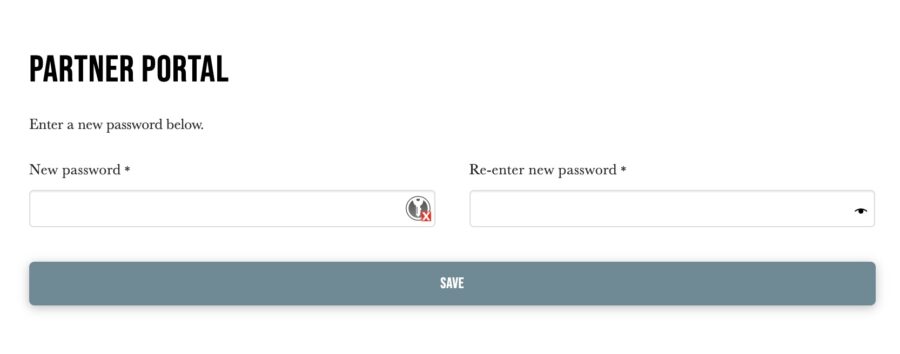
6. On the website, enter your new password twice and click the Save button. The system will save your new password and log you in.
1. Search for the person or project you want to give to on the World Missions site. Once you have located the desired Missionary or Project profile in the shop, select an amount to give.
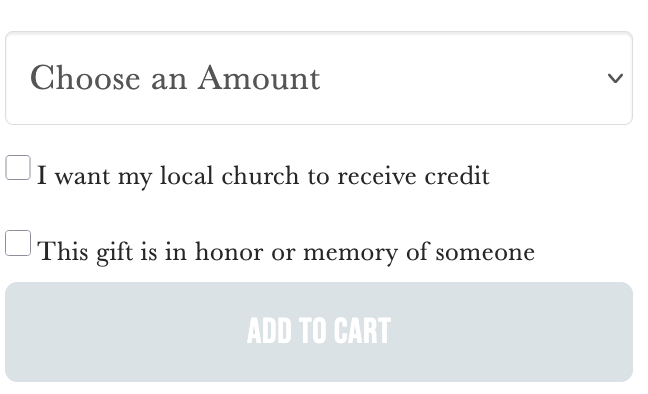
2. Once you select an amount, the additional menu appears to choose the type of gift. The default is "Give one-time."
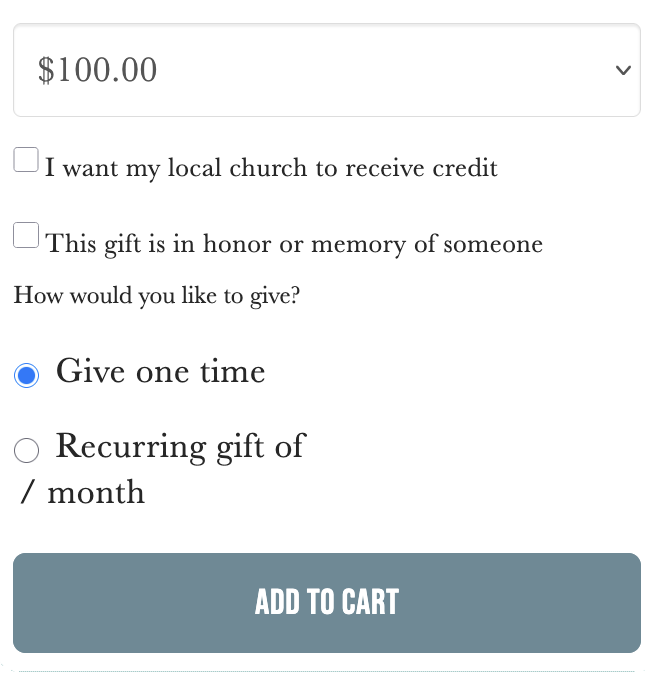
3. Change the type to "Recurring gift" by clicking on that radio button. Then click the "Add to Cart" button to continue.
- Click on the Shopping Cart icon in the top menu of the website.
- Log in to your account using your email address and password.
- This set of menus is where you can edit and make changes to your account.
- Visit the Give page here: Give Online
- At the bottom of the page you can enter any Missionary or Project number.
- You may also choose to give one-time or make your donation a recurring gift.
- Click Add to Cart and follow the normal procedure and instructions.
At the top menu of COGWM.org
- Click on the Shopping Cart icon in the top menu of the website.
- Log in to your account using your email address and password.
- Click on the Edit/Update Payment Types button.
- Use the available menus to either Add a new payment type, Edit the existing payment type, or Delete the payment type.
- Please note: you cannot change a card number or expiration date. You must Add a new card and Delete the old card. This is a security feature since we DO NOT store your credit card information on our server.
At the top menu of COGWM.org
- Click on the Shopping Cart icon in the top menu of the website.
- Log in to your account using your email address and password.
- Click on the Transactions button.
- Click on Order Number.
- Under the section "Related Subscriptions", select the order number (on the left) or the View button (on the right).
- Under the section "Subscription Totals", click the button "Change Recurring Giving" under the missionary/project you are wanting to change.
- You will be redirected to the Missionary/Project profile page.
- Choose a new amount from the "Choose an Amount" dropdown.
- Click the "Switch Subscription" button.
- Click the Checkout button.
- Click the "Switch Subscription" button again.
At the top menu of COGWM.org
- Click on the Shopping Cart icon in the top menu of the website.
- Log in to your account using your email address and password.
- Click on the Transactions button.
- Click on Order Number.
- Under the section "Related Subscriptions", select the order number (on the left) or the View button (on the right).
- Select Cancel to cancel your Subscription.
Your card may be declined for numerous reasons.
- The name and address you put into your online account need to match the name on the card and the billing address of the card.
- Your card may have limits on your card from your bank or card issuer. If there are limits on the card, you must call the bank/issuer and get the limit lifted.
- The card issuer may flag any transaction as "suspicious" based on their own algorithms. While Church of God World Missions processes many transactions every day and month, it is up to the card issuer to determine what they think may be a valid transaction based on your history with them.